The proxy server market is projected to grow from $1.9 billion to $2.6 billion by 2031, according to Knowledge Sourcing Intelligence (2026). That number tracks with what we see on the ground: more people configuring proxies themselves, without an IT department holding their hand. Market researchers, social media managers running accounts across five countries, pricing analysts scraping competitor catalogs — they all hit the same first obstacle. The setup.
This guide walks through proxy configuration on Windows 11, macOS, Android, iOS, Chrome, and Firefox. Every step was tested in April 2026 on current OS releases. If you already have credentials from a provider like ColdProxy, you can have a working connection in under five minutes. If you don't have credentials yet, keep reading — we'll cover that too.
Key Takeaways
Four things required before starting: proxy address, port number, protocol type (HTTP, HTTPS, or SOCKS5), and authentication credentials. Miss any one and the connection silently fails.
Windows and macOS system-level settings cover most apps — but Firefox ignores them entirely and uses its own proxy panel.
Android proxy settings only work over Wi-Fi. Mobile data? You need a VPN-based proxy app or a PAC file.
SOCKS5 handles more traffic types than HTTP proxies and is natively configurable on macOS and Firefox without extra tools.
Always verify your proxy with an IP checker before relying on it. We've seen people run a scraping job for hours through their real IP because they assumed the proxy was active.
The most common failure? Credentials with a stray space or a special character that gets misparsed. Username:password authentication demands exact formatting.
What You Need Before Setting Up a Proxy
Regardless of device, every proxy setup requires the same four pieces of information. Grab these from your provider's dashboard before touching any settings:
Proxy address — A hostname (like proxy.example.com) or IP address (like 198.51.100.1). ColdProxy provides gateway hostnames for residential proxies.
Port number — Common ports: 8080 or 8085 for HTTP/HTTPS, 1080 for SOCKS5. Your provider specifies the exact port. Get this wrong and nothing happens — no error, just a timeout.
Protocol type — HTTP, HTTPS, or SOCKS5. This determines which settings field you fill in. HTTP is universally supported. SOCKS5 handles more traffic types but fewer devices support it natively — Windows doesn't even have a SOCKS5 field in its proxy panel.
Authentication method — Either username/password or IP whitelisting. IP whitelisting means the proxy recognizes your IP and connects without credentials — cleaner, but breaks if your ISP rotates your IP. ColdProxy supports both on all residential plans.
No credentials yet? Use the shortest paid billing period available for the plan you want to test, then scale after credentials and routing are verified. Free trials may also be available after individual review: tell ColdProxy what you want to test and the capacity you need on Telegram or in a support ticket.
Proxy Setup Methods Compared
Each platform handles proxies differently — and the gaps are wider than most guides admit. Here's what actually works on each, what doesn't, and the workarounds worth knowing about.
Windows 11: Settings > Network & Internet > Proxy. HTTP and HTTPS only. System-wide — covers Edge, Chrome, and most desktop apps. No SOCKS5 field at all. Need SOCKS5? Use Firefox or install Proxifier.
macOS (Sonoma/Sequoia): System Settings > Network > Wi-Fi > Details > Proxies. HTTP, HTTPS, and SOCKS5 — all native. The most complete proxy panel of any consumer OS. One catch: settings are per-network, so a proxy configured on office Wi-Fi won't be active at home.
Android: Settings > Wi-Fi > long-press network > Modify > Advanced > Proxy. HTTP only, per-network, Wi-Fi only. Android's proxy support is frustratingly limited compared to desktop operating systems. Samsung moves this menu to a different path than stock Android — look under Connections > Wi-Fi > gear icon > View more.
iOS (iPhone/iPad): Settings > Wi-Fi > tap (i) next to network > Configure Proxy. HTTP and PAC files. Wi-Fi only, no SOCKS5 without a third-party app. Clean interface, but the same per-network limitation as Android.
Chrome: No independent proxy settings. Opens the OS proxy panel. For per-profile switching, install SwitchyOmega from the Chrome Web Store.
Firefox: Its own proxy settings, completely independent from the OS. Supports HTTP, HTTPS, and SOCKS5. Firefox handles proxy configuration better than any other browser — it's the only major browser where you can set up SOCKS5 directly without extensions.
How to Set Up a Proxy on Windows 11
Windows routes proxy traffic through its system settings, so Chrome, Edge, and most desktop apps automatically pick up whatever you configure here. The steps follow the current Microsoft Support documentation:
Press Win + I to open Settings.
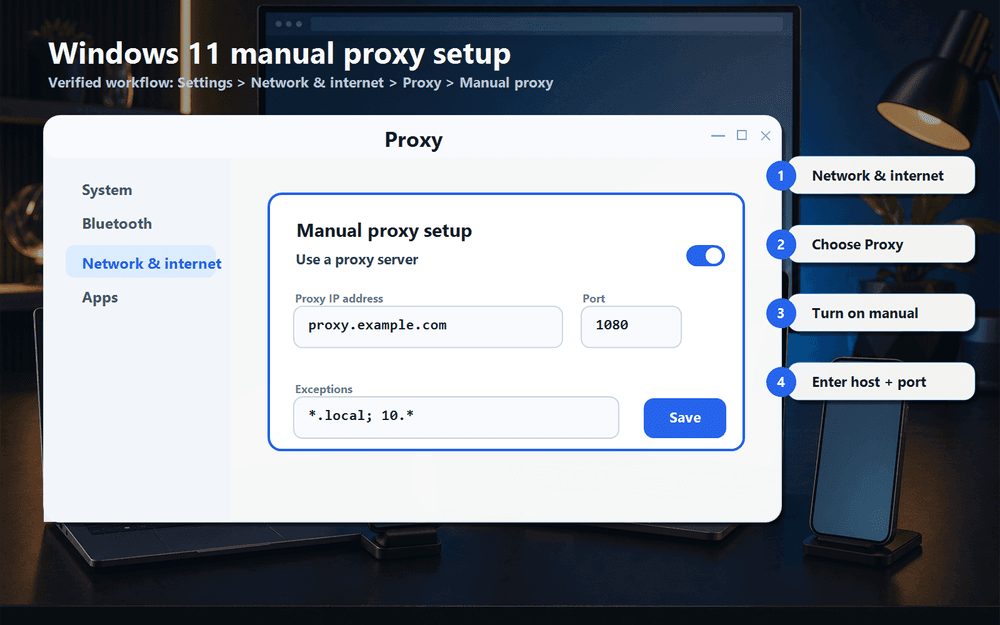
Go to Network & Internet > Proxy.
Under Manual proxy setup, click Set up next to "Use a proxy server."
Toggle Use a proxy server to On.
Type the proxy address (e.g., gateway.coldproxy.com) and port (e.g., 8080).
Check "Don't use the proxy server for local (intranet) addresses" — otherwise your LAN file shares and printers will break.
Click Save.
With username/password auth, Windows shows a credential prompt when you first open a browser. One gotcha: this prompt sometimes appears behind the browser window, so if the page just hangs, check your taskbar for a second dialog. Check "Remember" to avoid re-entering credentials on every session. With IP whitelisting on ColdProxy, no prompt appears — traffic just flows.
Windows has no SOCKS5 proxy field. None. If you need SOCKS5, your options are Firefox (which has its own SOCKS5 setting) or a tool like Proxifier that intercepts traffic at the system level.
Windows 11: open Network & internet > Proxy, turn on manual proxy, then enter host and port.
How to Set Up a Proxy on macOS
macOS is the outlier here — in a good way. It supports HTTP, HTTPS, and SOCKS5 proxies natively, no extra software needed. These steps apply to Sonoma and Sequoia:
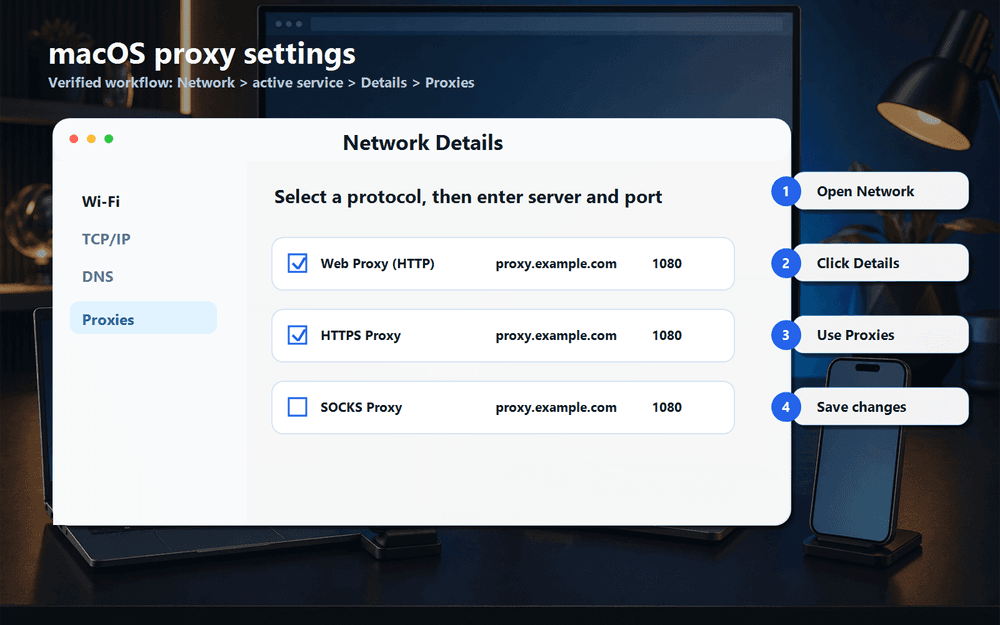
Open System Settings and click Network in the left sidebar.
Select your active connection (Wi-Fi or Ethernet) and click Details.
Click the Proxies tab.
Enable the protocol you need: Web Proxy (HTTP), Secure Web Proxy (HTTPS), or SOCKS Proxy.
Fill in the server address and port number.
If authentication is required, check "Proxy server requires password" and type your username and password.
Click OK, then Apply.
The SOCKS Proxy option on macOS handles DNS lookups through the proxy as well (remote DNS), which prevents your real location from leaking through DNS queries. ColdProxy's SOCKS5 endpoints support remote DNS on all residential plans.
One thing that trips people up: macOS proxy settings are per-network. Set up a proxy on hotel Wi-Fi, fly home, and your home connection works fine — until three weeks later when you visit the same hotel chain and can't figure out why your browsing is broken. The old proxy config is still there, waiting. Firefox doesn't use macOS proxy settings at all, so configure it separately using the Firefox section below.
macOS: open Network, choose the active service, open Details, then use the Proxies tab.
How to Set Up a Proxy on Android
Android makes proxy configuration harder than it should be. Settings are buried, vary by manufacturer, and only apply to the current Wi-Fi network. Here's the stock Android path:
Open Settings > Wi-Fi (or Network & Internet > Wi-Fi).
Long-press your connected network and select Modify network.
Tap Advanced options to expand the hidden settings.
Change Proxy from None to Manual.
Type the hostname (e.g., gateway.coldproxy.com) and port (e.g., 8080).
Leave Bypass proxy for empty unless you need to exclude local addresses.
Tap Save.
That's it for Wi-Fi. But the bigger problem is what Android can't do. Built-in proxy settings do not apply to mobile data at all — 4G, 5G, none of it. For mobile data, you need a third-party app that creates a local VPN tunnel and pushes traffic through your proxy. Apps like Drony or ProxyDroid handle this, though some versions require root access. Authentication prompts appear through the browser on first connection if you're using username/password.
Android: proxy settings are edited on the selected Wi-Fi network under Advanced options.
How to Set Up a Proxy on iOS
iOS keeps proxy setup simple — arguably too simple, because it hides advanced options. The entire process takes about 30 seconds:
Open Settings > Wi-Fi. Tap the info icon (i) next to your connected network. Scroll down to Configure Proxy and select Manual. Fill in the server address, port number, and credentials if required. Tap Save in the upper-right corner.
Two options here, actually. Besides Manual, iOS also offers Automatic, where you supply a PAC (Proxy Auto-Configuration) file URL. PAC files let you write rules for which traffic goes through the proxy and which connects directly — useful when you only want certain domains proxied. Most people won't need this, but it's there.
Same limitation as Android: Wi-Fi only. Cellular traffic is completely untouched. No built-in way around it — you'd need a VPN configuration profile to proxy mobile data on iOS.
iPhone and iPad: open the Wi-Fi network info screen, choose Manual under HTTP Proxy, then enter server and port.
How to Configure a Proxy in Chrome and Firefox
Chrome Proxy Setup
Chrome doesn't have its own proxy settings. When you open Settings > System > Open your computer's proxy settings, it just opens the Windows or macOS proxy panel. That's by design — Chrome defers to the OS.
For per-profile or per-tab proxy control, install SwitchyOmega from the Chrome Web Store. It lets you create named proxy profiles, switch between them in one click, and write rules that route specific domains through different proxies. If you manage multiple accounts or scrape from different locations simultaneously, this extension is essential.
Firefox Proxy Setup
Firefox stands apart from every other browser here. It maintains its own proxy stack, completely independent of whatever the OS is doing. That independence is exactly why power users prefer it for proxy work.
Open Firefox and type about:preferences in the address bar.
Scroll to the bottom of the General tab and click Settings under Network Settings.
Select Manual proxy configuration.
For HTTP proxies, fill in HTTP Proxy and port. For SOCKS5, fill in SOCKS Host and port, and select SOCKS v5.
Check "Proxy DNS when using SOCKS v5" — this routes DNS through the proxy and prevents leaks.
Click OK.
This matters: Firefox is the only major browser where you can configure SOCKS5 directly, without extensions or OS-level changes. On Windows, where there's no system SOCKS5 field at all, Firefox is the simplest path to a working SOCKS5 connection.
Chrome opens the operating system proxy panel; Firefox can also use its own proxy settings panel.
How to Verify Your Proxy Connection
Configuring a proxy and having a working proxy are two different things. We've seen setups that looked correct in every field but still leaked the real IP because of a DNS misconfiguration. Don't skip verification.
Check your visible IP. Visit ColdProxy's IP Checker or any IP lookup service. The IP shown should not be yours. If you see your home or office IP, the proxy isn't active.
Confirm the location. If you selected a specific country or city in your proxy settings (ColdProxy supports targeting by country, city, ZIP, and ASN), the IP checker should reflect that geo.
Cross-check with a second site. If two IP checkers show different results, you likely have a DNS leak or the proxy is only partially applied.
Run a DNS leak test. Even with a working proxy, DNS queries can still go through your ISP, exposing which sites you visit. A DNS leak test site will show whether your queries are routing through the proxy or bypassing it.
ColdProxy also provides a Proxy Checker tool that tests whether a proxy address and port are responding. Use it to validate your credentials before configuring them on your device — saves you from troubleshooting a config that was never going to work because the credentials were wrong.
After saving settings, test one proxy line and confirm the exit IP and location before using it.
Common Proxy Setup Mistakes and Fixes
1. Wrong Port Number
HTTP proxies typically use 8080 or 3128. SOCKS5 uses 1080. Here's the catch: putting an HTTP port in a SOCKS5 field (or the reverse) fails silently. No error message. The connection just times out and you're left wondering whether the proxy server is down. It's not. You used the wrong port. Double-check your provider's docs for the exact port per protocol.
2. Firewall or Antivirus Blocking the Proxy Port
Works at home, breaks at the office. Classic. Corporate networks and personal firewalls block non-standard ports routinely. If this happens, ask your network admin to whitelist the port, or check whether your proxy provider offers connections on port 443 — it's rarely blocked since it's the standard HTTPS port.
3. Credentials with Special Characters
Passwords containing @, :, or % wreak havoc on proxy URLs formatted as user:password@host:port. The system interprets @ as the delimiter between credentials and hostname, so a password like p@ss123 breaks the parsing entirely. URL-encode those characters (@ becomes %40, : becomes %3A) or switch to IP whitelisting to avoid passwords altogether.
4. Forgetting to Disable the Proxy
A proxy that goes offline kills your internet. Completely. No fallback, no partial connectivity — just nothing. If your browser suddenly can't reach any site, check whether a proxy is still enabled. On Windows: Settings > Network & Internet > Proxy, toggle it off. On macOS: uncheck the protocol boxes in the Proxies tab. This one catches people more often than any misconfiguration does.
5. Proxy Set on One Network but Not Another
On Android and iOS, proxy settings are per-network. Configure a proxy on your home Wi-Fi, walk into a coffee shop, and the proxy vanishes. Each new Wi-Fi network needs its own configuration. macOS and Windows apply settings globally, so this only affects mobile devices — but it's the number one confusion we hear from Android and iPhone users.
How We Tested These Instructions
Every step was tested in April 2026 on these versions: Windows 11 24H2, macOS Sequoia 15.4, Android 15, iOS 18, Chrome 135, and Firefox 137.
For each platform, we configured a ColdProxy residential proxy using both username/password and IP whitelisting authentication. Connections were verified using ColdProxy's IP Checker and an independent third-party IP lookup. Settings paths were confirmed against official vendor documentation, including Microsoft's proxy setup guide for Windows.
Menu paths can vary by OS version, device manufacturer (especially Android — Samsung, OnePlus, and Xiaomi all rename menus differently), and regional settings. If something is named slightly differently on your device, look for the closest match.
Limitations and Edge Cases
This guide covers standard consumer and small-business proxy setup. Several scenarios fall outside that scope:
Enterprise/MDM-managed devices: Corporate devices managed through MDM may lock proxy settings entirely. Your IT department can push proxy configurations remotely through management profiles — you might not have manual access at all.
VPN conflicts: Running a VPN and a proxy simultaneously causes routing conflicts more often than not. Most VPN clients override proxy settings. If you need both, configure the proxy inside the VPN tunnel or use a proxy-aware VPN client.
Application-specific proxies: Slack, Spotify, and most gaming clients ignore system proxy settings. They need their own proxy configuration or a SOCKS5 wrapper like proxychains (Linux) or Proxifier (Windows/macOS) to intercept their traffic.
Linux: This guide focuses on consumer devices. Linux proxy setup varies heavily by distribution and desktop environment — GNOME, KDE, and terminal-only setups each handle it differently. The most reliable method is setting http_proxy and https_proxy environment variables, or configuring proxychains for SOCKS5.
Programmatic proxy use: If you're running proxies for web scraping or automation, configure the proxy in your code (Python requests, Node.js axios, Puppeteer launch options) rather than at the OS level. Faster, more flexible, and you can rotate proxies per request.
Frequently Asked Questions
Do I need a proxy for every device on my network?
Not necessarily. You can configure a proxy at the router level to cover all devices at once. But most consumer routers don't support this natively — you'd need a flashed firmware like OpenWrt or DD-WRT. The alternative is configuring each device individually, which gives you control over exactly which devices use the proxy.
Will a proxy slow down my internet?
Free proxies? Almost certainly. They're overloaded and add noticeable latency. Premium residential proxies are a different story. ColdProxy lists up to 0.6s response time and a 99.9% success rate, which counts working proxy connections and exit IPs — for normal browsing, the speed difference is negligible. Bandwidth-heavy tasks like video streaming may see some impact depending on plan and server distance.
What is the difference between HTTP and SOCKS5 proxies?
HTTP proxies handle web traffic — HTTP and HTTPS requests. That's their scope. SOCKS5 operates at a lower level and can proxy any type of traffic: web, FTP, email, peer-to-peer, gaming. More versatile, but less native support on mobile and Windows. ColdProxy supports HTTP, HTTPS, and SOCKS5 on all residential plans.
Can I use one proxy subscription on multiple devices?
Yes. Most providers, ColdProxy included, let you use the same credentials across multiple devices at once. With IP whitelisting, you can authorize several IPs. With username/password, use the same login on as many devices as your plan allows. Check your plan terms for concurrent connection limits.
How do I remove a proxy configuration?
Reverse the setup steps. Windows: Settings > Network & Internet > Proxy, toggle off. macOS: uncheck the protocol boxes in the Proxies tab. Android and iOS: set proxy back to None for the network. Firefox: select No proxy under Network Settings. Direct internet access restores immediately.
What to Do After Your Proxy Is Running
Once verified, your next steps depend on the use case. Collecting data at scale? Configure the proxy in your scraping framework — OS-level settings aren't designed for request-level rotation. Need different geos for different tasks? Set up proxy profiles through browser extensions or your provider's geo-targeting options. ColdProxy supports country, city, ZIP, and ASN-level targeting across 195+ countries and 70 million or more IPs.
If you followed this guide on a short paid plan and need more capacity, ColdProxy's unmetered residential plans remove bandwidth limits entirely — useful for high-volume scraping or continuous monitoring where metered billing gets expensive fast.
For questions about protocol support, geo-targeting, or authentication specific to ColdProxy, the FAQ page covers the most common scenarios. Setup takes minutes. The value is in what you build on top of it.
Share this article:
ColdProxy Team
Content Team
The ColdProxy Content Team consists of proxy-service experts, developers, and technical writers dedicated to providing clear, accurate insights on web scraping, online privacy, and advanced proxy technologies.